How to Read a Fish Finder Screen, Line by Line
To read a fish finder screen, start with the depth and bottom line, then read sonar returns from right to left. Use arches and colored marks as clues, and check them against your location and what the transducer is showing.
On this page (10 sections)
- What does a fish finder screen show?
- Which side of the screen should you read first?
- How do you read depth and the bottom line?
- What do fish arches and other marks mean?
- How should you read color and brightness?
- What changes between traditional sonar and imaging?
- How do you match a mark to its location?
- Why can the screen look cluttered or empty?
- What should a beginner check on each pass?
- How to read a fish finder screen for your next move
To read a fish finder screen, check the depth and bottom first, then read new sonar returns at the right edge. Arches and colored marks can suggest fish or structure, but they are clues from sonar, not a photograph or a species label.
A scrolling display builds a record as the boat moves. The picture gets easier to interpret when you know which side is newest, where the bottom sits, and which view is active.
What does a fish finder screen show?
A fish finder screen shows sonar returns over time, along with depth and other information your unit supports. Traditional sonar draws a scrolling history, while imaging views can show a narrower or wider slice of underwater structure.
The transducer sends sound into the water and receives echoes from objects and the bottom. The unit turns those echoes into marks on screen; color, brightness, and shape depend on sonar type and display settings.
To understand the tools and their limits, see what a fish finder is used for. If you're deciding whether you need sonar or only depth readings, compare fish finders and depth finders.
Which side of the screen should you read first?
On a scrolling sonar screen, read from right to left: the right edge is usually newest. As the boat travels, fresh returns appear at the right and older history shifts toward the left.
That means a mark near the center may have come from a spot you passed a short time ago. Boat speed, scroll speed, and sonar settings affect how much history fits on screen.
Don't treat the display like a camera view pointing ahead. It records what passed through the transducer's beam, so a mark's screen position doesn't show where to steer.
How do you read depth and the bottom line?
Use the depth number and the bottom trace together. The depth number gives the unit's current estimate below the transducer, while the bottom trace shows where the return from the lake or river bed appears.
A steady trace can help you notice a change in depth. A sudden rise or dip may indicate a slope, ledge, or other bottom change, but confirm it as the boat continues over the area.
A thicker or brighter bottom trace can reflect a stronger return or display settings. It doesn't identify bottom material by itself, so compare the shape and consistency of the trace rather than guessing from color alone.
What do fish arches and other marks mean?
An arch can be a fish passing through the sonar beam, but the shape isn't a guarantee. The unit draws returns over time, and a target's movement through the beam can form an arch on a scrolling display.
A partial arch may appear when a fish enters or leaves the beam, when the boat moves quickly, or when the display settings affect the history. Small dots and short lines may also be fish, bait, debris, or another target.
Look for repeatable clues: depth, proximity to cover, nearby bait-like marks, and whether similar returns appear as you pass again. Sonar can help you decide where to investigate, but it can't name a species from a mark alone.
How should you read color and brightness?
Read color as a way to compare return strength within the current palette, not as a universal fish label. Different units and palettes use color differently, so learn the key on your screen and keep settings consistent while comparing areas.
A bright mark may be a strong return, but brightness alone doesn't prove that it is a large fish. Gain, palette, sonar frequency, and target distance can all affect how a return looks.
Make one setting change at a time. If you adjust gain or color settings, watch how both fish-like marks and the bottom trace change.
What changes between traditional sonar and imaging?
Traditional sonar is useful for reading depth and targets beneath the transducer; imaging adds a more detailed view of nearby structure. The screen can look quite different when you switch views, so first identify which sonar mode is active.
CHIRP traditional sonar sends a range of frequencies and displays returns as targets and bottom traces. Down imaging or similar scanning views can make contours, vegetation, and objects easier to distinguish, but their picture-like detail still needs interpretation.
For a closer explanation of one common view, read what CHIRP down imaging is. If you want to scan cover off the sides of a boat, how to find fish with side imaging explains how to interpret that view.
How do you match a mark to its location?
Use GPS or a waypoint feature to save a spot when the screen shows a useful depth change or repeatable target. A sonar mark is tied to where the transducer was when it received the return, not necessarily the boat's exact position when you later inspect the screen.
GPS can help you return to a location, but it doesn't improve the sonar reading itself. Keep notes about depth, cover, and conditions so a saved point has useful context.
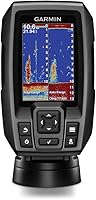
The Garmin Striker Vivid 4cv combines CHIRP traditional sonar and CHIRP ClearVü scanning sonar with GPS waypoints, routes, and Quickdraw Contours mapping.
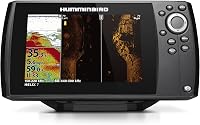
The Humminbird Helix 5 CHIRP GPS G3 offers Dual Spectrum CHIRP with Wide and Narrow modes, along with GPS navigation and AutoChart Live mapping.
The Lowrance Eagle 5 SplitShot HD combines CHIRP targets with DownScan views, and FishReveal places fish targets on the DownScan image.
Why can the screen look cluttered or empty?
Clutter can come from settings, conditions, or overlapping returns; an empty screen doesn't prove fish are absent. Water depth, boat speed, transducer position, sensitivity, and sonar mode all influence what appears.
If the display looks crowded, reduce gain slightly or change one view setting, then compare the bottom trace and targets. If marks disappear too, restore the setting and make smaller changes.
If the screen seems empty, check that the unit has a depth reading and that the transducer is in the water and positioned as its instructions require. Bubbles, turbulence, and poor transducer placement can interfere with returns.
What should a beginner check on each pass?
Start each pass by checking depth, bottom shape, and the newest marks at the right edge. Then compare what you see with your location and the structure around it.
Use a simple routine:
- Confirm the unit is showing the sonar view you expect.
- Read the depth and note whether the bottom is flat, rising, or dropping.
- Watch for repeatable marks near cover or a depth change.
- Save a waypoint if you want to revisit the location.
- Change one setting at a time if the view needs adjustment.
With practice, you'll learn how your unit draws returns at your usual speed and settings. For a broader comparison of sonar displays and devices, start with types of fish finders.
How to read a fish finder screen for your next move
When learning how to read a fish finder screen, use depth and bottom shape to find promising areas, then treat fish-like marks as leads to investigate. Read a scrolling display from the newest returns on the right, and remember that sonar doesn't identify species.
Choose a unit with the view and controls you'll use: the Garmin pairs traditional and ClearVü sonar with GPS, the Humminbird offers Wide and Narrow CHIRP modes, and the Lowrance combines CHIRP with DownScan and FishReveal. Save useful locations when your GPS supports waypoints, then compare what you see on the next pass.
Frequently asked questions
What does a fish arch mean on a fish finder?
An arch is a sonar return made as a target passes through the sonar beam while the boat moves. A complete arch can form when a fish crosses the beam, but size, speed, depth, and settings affect its shape.
Treat the mark as a clue, not proof of a species or fish size.
Why does the fish finder show a thick bottom line?
A thick bottom line can come from a hard return, a wide sonar pulse, a strong gain setting, or overlapping display history. Compare the line with the depth reading and nearby structure, and adjust settings gradually.
A thick line alone doesn't tell you the exact bottom material.
What does the right side of a fish finder screen show?
On a scrolling traditional sonar view, the right edge usually shows the newest returns, while older returns move left. The screen is a record of recent sonar readings rather than a forward-looking picture, so a target's position on the screen doesn't show its exact location ahead of the boat.
Can a fish finder tell you what kind of fish is below?
A fish finder can show targets and their depth, but a typical sonar return doesn't identify the species. Size, shape, depth, and nearby cover may help you judge whether a mark is worth investigating.
Confirm with your location, local fish behavior, and what you catch.